On this page
The Kanban Board
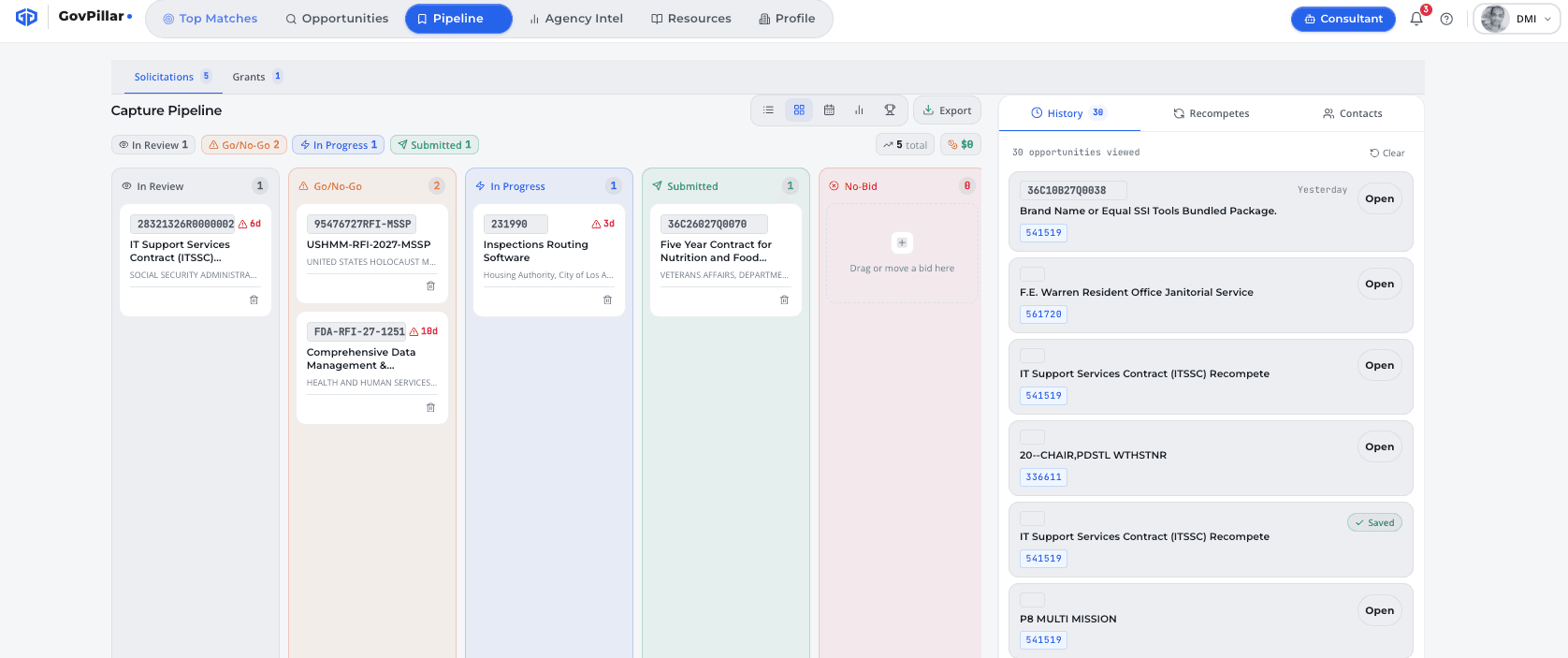
Press P to open the Pipeline. Drag cards between columns to update their stage, or use the ⋯ menu → Change Status on any card.
| Stage | When to use it |
|---|---|
| In Review | Saved and being evaluated — scoring and RFP analysis in progress |
| Go/No-Go | Ready for a formal bid decision — run the Bid/No-Bid Scorecard here |
| In Progress | Bid decision made, proposal in active development |
| Submitted | Proposal submitted, waiting on award |
| Won | Contract awarded to you |
| Lost | Awarded to a competitor |
| No-Bid | Decided not to pursue |
Pipeline Metrics
The summary bar at the top of the Pipeline tab shows totals across your active pursuits.
- Total Pipeline Value — combined contract values for all active items
- Average Pwin — mean probability of win across the pipeline
- Deadlines This Week — items with response dates in the next 7 days
- In Progress — count of items currently in the In Progress stage
Win/Loss Tracking
Record outcomes on every pursuit and track your win rate over time. Pipeline → History tab.
To record an outcome: open the pipeline item → ⋯ → Record Outcome. For wins, enter the awarded value and date. For losses, record the awardee name if you know it.
- Win rate — Won ÷ (Won + Lost)
- Total contract value won
- Breakdown by agency and NAICS
Recompetes
The Recompetes tab shows active federal contracts expiring in the next 90 or 180 days — contracts that are likely to be re-solicited before they appear on SAM.gov.
Filter to pipeline agencies only, or search all agencies. Click Add to Pipeline to move any recompete into your Review stage immediately.
Use this for pre-positioning
If you spot a recompete 6 months out, you have time to reach the contracting officer, build a relationship, and shape the requirement before the RFP drops.
Capture Documents
Each pipeline item has a document library where you build and store proposal artifacts. Open any opportunity → Manage tab → Documents.
- Click + New Document
- Give it a name — "Technical Approach v1" or "Pricing Narrative"
- Organize into folders by proposal volume
- Write in the editor, or paste from Word
- Click Generate Draft to have the AI write a starting draft from the solicitation and your profile
Every save is versioned. Click History to see prior versions and restore any of them. Export as DOCX or PDF when ready.
Contacts
Track your relationships with contracting officers and program managers. Open any opportunity → Manage tab → Contacts.
- Contact profiles — name, title, agency, email, phone
- Activity log — record emails, calls, and meetings with date and notes
- The contracting POC from the solicitation is pre-populated from SAM.gov
Was this page helpful?